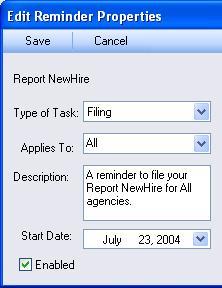
To edit a specific reminder, first use the 'Edit Reminders' link to bring up a listing of all the reminders currently installed on your system. If you wish to edit (or disable) a reminder, you can highlight it and click 'Edit' or double click on any line item. This will bring up the 'Edit Reminder Properties'.
The left side of this screen contains all of the basic information about this reminder: its type, the filing or payment agency to which it applies, a description that you may edit, the date the reminder begins and whether or not it is currently enabled.
Any of these properties may be changed and saved using the 'Save' button. The 'Cancel' button will cancel any changes you have made and return you to the previous screen. The title itself can not be changed; if you wish to edit the actual title of a reminder you must delete the reminder and create a new one.
On the right side of the edit window are the recurrence rules. The recurrence rules are what dictate how often you will see the reminder inside the Greenshades center.
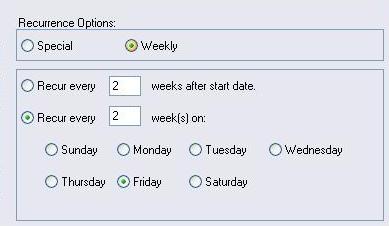
The top box shows a list of the different types of recurrence rules that may be used. In this case, New Hire may be set up on a 'Special' or a 'Weekly' schedule. There are two different weekly options. Different types of recurrence rules are available for different types of filings. An unemployment reminder, for instance, would have Quarterly recurrence options, a W2 would have Yearly options, and so forth. If you click on another type of filing, such as 'Special', the bottom box will update to display the new options. Below, there is only one option for the 'Special' recurrence type.
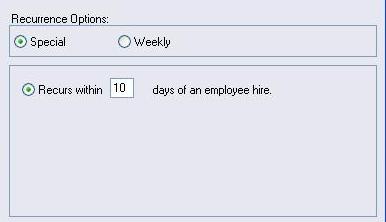
If you made changes to your recurrence rules and clicked 'Save' then your reminder list on the main screen of the filing center will update automatically.